-
Christmas Cards
- Christmas Cards
- Celebrate This Year
- Shop by Format
- Shop by Greeting
- Accessories
- Popular Styles
- Shop by Photos
- Shop by Shape
- Business Christmas
- Services
- Weddings
- Save the Dates
- Wedding Invitations
- Enclosure Cards
- Programs
- Accessories
- Reception
- Favors
- Wedding Signs
- Thank you Cards
- Showers & Parties
- Occasions & Holidays
- Business
- Calendars
- Sports Schedules
- Household Tips
- Postcards
- Essentials
- Business Christmas Cards
- Gifts & Favors
- Yard Signs
- Custom Magnets
- Business Extras
- Photo Tiles
- Colleges & K12
How to Use Custom Colors
Determine CMYK Values
CMYK numbers tell our printers how to create the exact color you want to see on your stationery. Find the CMYK values under each color in Color Trends, or use your own.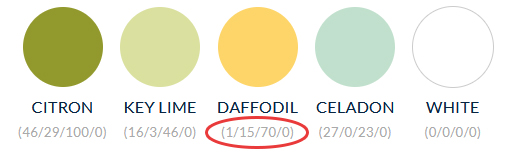
Applying Custom Colors to your design
Inside Design Studio
Once you’ve chosen the design you want to customize, click “Personalize” to enter Design Studio. Let the fun begin!
Select the Color
When you enter Design Studio, you will see each color featured on the template. Select the first color you would like to change.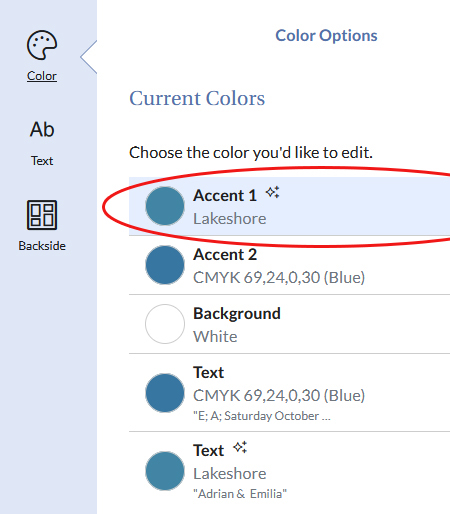
Create Custom Color
Click “Custom Colors” and “Create Custom Color” to enter the CMYK values.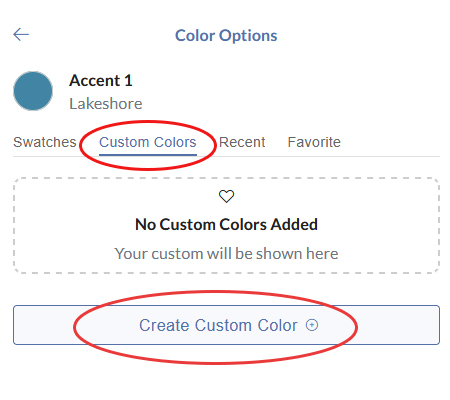
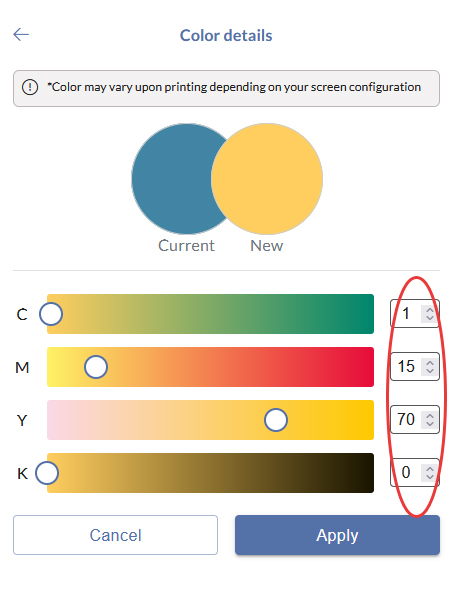
Enter CYMK
Enter the CMYK values. The colors are listed in order C, M, Y, K. Click Apply to update your design and repeat until all colors have been updated.*Note: C stands for Cyan, M stands for Magenta, Y stands for Yellow, and K stands for Black. These are the inks that are used in printing.
Saving Custom Colors
Custom colors will appear in your recent colors, but to save these colors to your account, click the heart (note you must be logged in to save them to your account). This will keep your custom palette saved for future designs to ensure your color scheme is consistent in every printed detail!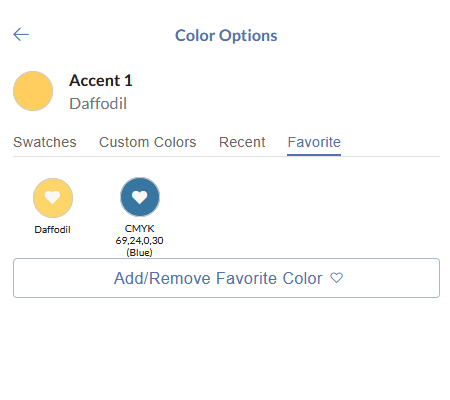
Color Palette
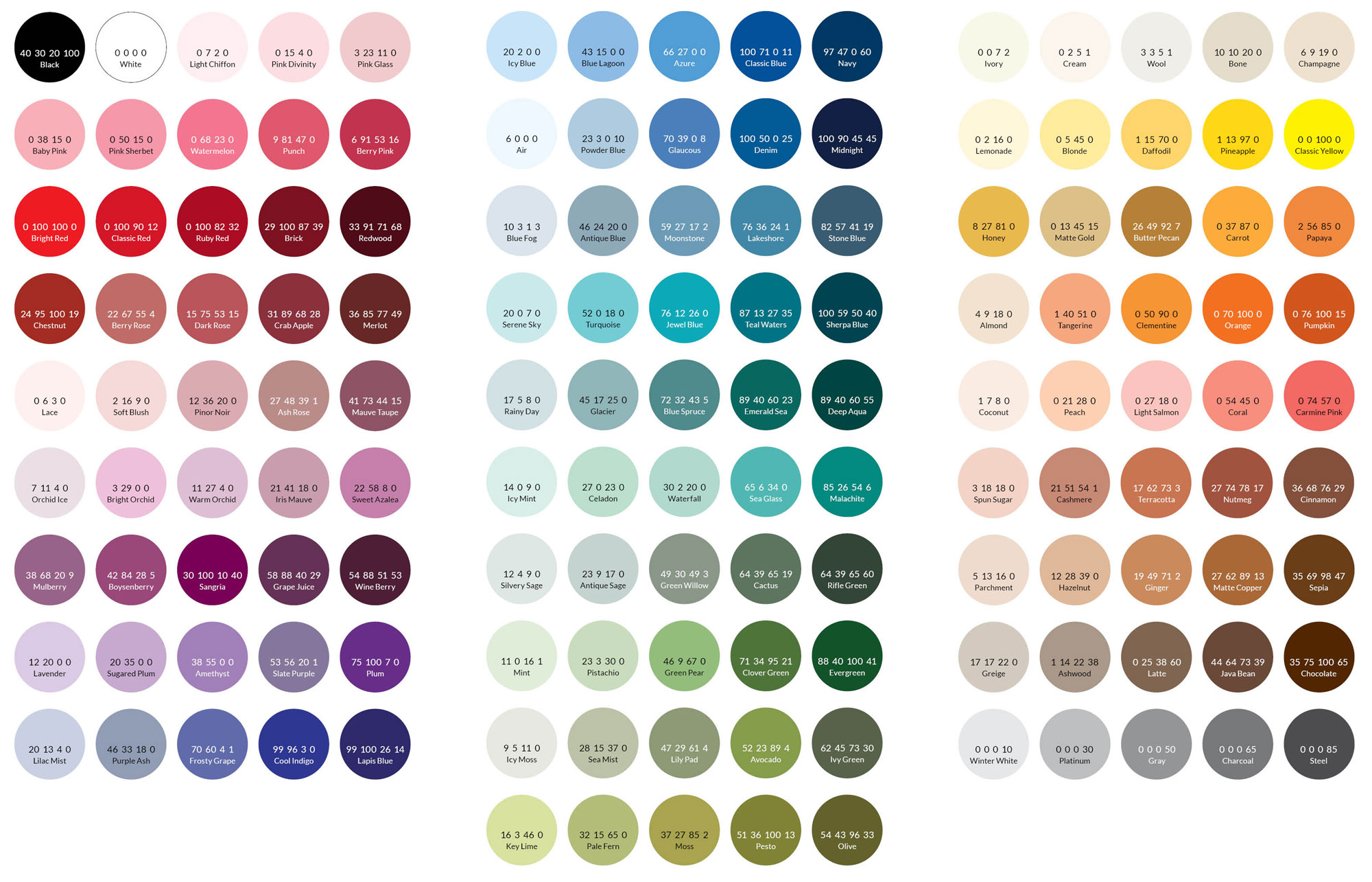
Here is our palette of color options, available under swatches inside Design Studio. Please note that colors may vary between monitors and printers. Download the color palette